Most people blame their bids when Shopping Ads underperform. Wrong move. Ninety percent of the time, the issue you have is within your feed.
Behind every Shopping ad that you have ever created lies Google Merchant Center. Screw it up, and Google will not even consider your products. Do it well, and you can reduce your costs and increase your impressions without changing anything in your budget.
Here is what you need to know to fix your feed for good. No bull, only things that matter.
What Exactly Does Google Merchant Center Do?
Here’s something a lot of store owners get wrong: Google doesn’t crawl your website to figure out what you sell. It reads your feed. That’s it.
So if your feed is thin, outdated, or missing pieces, Google can’t connect your products to the right searches. Doesn’t matter how good your website looks.
A solid feed gets you three things:
- More products approved and live
- Better matches between your products and shopper searches
- Stronger Shopping Ads results, even on the same budget
Fix the feed first. Worry about bids later.
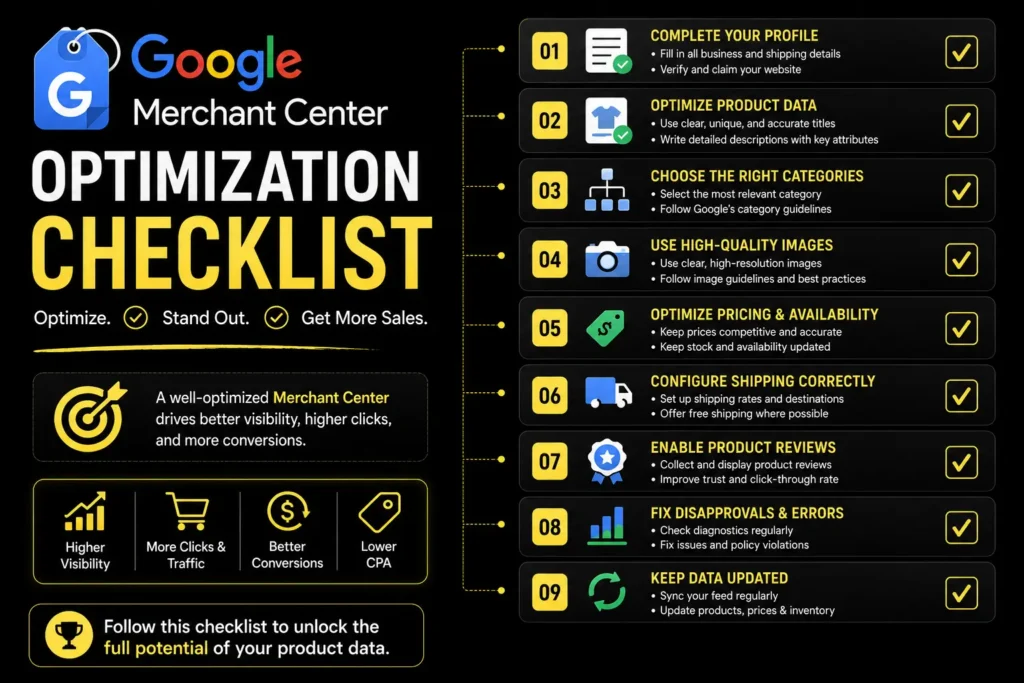
Setting Up Google Merchant Center The right Way
Your setup is the foundation everything else sits on. Skip a step, and you’ll feel it later, usually as a disapproval you can’t explain.
Verify and claim your site
Head to Business information and confirm your URL. Google wants proof the site is actually yours before it’ll trust your data.
Get your tax and shipping settings right
This is another problem that confuses many people. Customers will want to see correct shipping charges and tax rates displayed prior to check out, and failing to set those correctly can get you suspended by Google.
Link Google Ads to Merchant Center
Without this, shopping campaigns don’t exist for you. Go to Settings, then Linked accounts.
Pick how you’ll send your feed
Manual upload works for small catalogs. Scheduled fetch is better for most stores since it updates automatically. The Content API suits anyone running serious volume.
Submit the feed and wait
Google reviews every item before it goes live, so build in a buffer before launch day.
The Product Data Google Actually Cares About
This is where most disapprovals come from. Not policy violations, just sloppy data.
- Title. Lead with brand, product type, then key details. “Blue Shirt” tells Google nothing. “Nike Men’s Dri-FIT Crew Neck T-Shirt, Navy” tells it everything.
- Description. Write it like you’re talking to a person, not stuffing keywords for a bot.
- GTIN. Add the real barcode number. Google cross-checks this against existing product data, and getting it wrong creates mismatches you won’t even notice until performance tanks.
- Product category. Go specific. The most granular Google category available, not the broad parent one.
- Image. Clean background, no watermark, no “50% OFF” banner slapped across it.
- Price and availability. These need to match your live site exactly. A mismatch here is the single most common reason for disapprovals, and it’s almost always avoidable.
One mismatch between your feed and your site can flag the whole listing. So check both, side by side, before you submit.
Making Your Feed Work Harder For Shopping Ads
Once your products are approved, this is where the real optimization starts.
Don’t dump every product into one big group. Split them by margin, season, or past performance using custom labels. Your best sellers and your slow movers shouldn’t be bidding the same way.
Shopping campaigns won’t let you target keywords directly, but negatives are fair game. Review your search terms report on a weekly basis and remove those which are just draining your budget and not generating any conversions for you.
The importance of titles is much greater than what people generally understand. This is because Google matches the keywords from the search query to the title of the website; hence, the competitor with a better-written title wins the battle irrespective of his lower bid..
Running Performance Max? Keep an eye on the Shopping-specific insights inside it. PMax blends multiple channels together, which makes it easy to lose track of what’s actually driving your Shopping results versus everything else.
And check your diagnostics page. Weekly, at minimum. It flags disapprovals and warnings before they quietly kill your campaign.
FAQs
1. How often should I update my Google Merchant Center feed?
Daily works best if your prices or stock change often. Old data means disapprovals, and disapprovals mean lost sales.
2. What makes my products get disapproved over and over again?
Most often it is one of the following problems: price discrepancy, lack of GTIN, policy-violating image, or shipping data inconsistent with the website. This will be indicated on the diagnostics page.
3. Can feed quality influence the Quality Score of my ad?
For Shopping ads the Quality Score system does not apply as text ads. But your feed quality still shapes click-through rate and relevance, and those two quietly drive your costs either way.
4. Can I run Shopping Ads without a Merchant Center?
No. There’s no workaround. Merchant Center submits the feed, and Shopping Ads can’t run without one.